Sagar Club updates are small — usually a couple of MB — but skipping them is the number one cause of “it worked yesterday”. Here’s how to update on each phone and what to do when it goes wrong.
On this page
Why updates matter
- New games and events often need the latest version.
- Fixes for crashes and login bugs arrive through updates.
- Very old versions can stop connecting altogether.
Updating on Android
- Open the Sagar Club app. If an update is ready, a prompt appears.
- Tap Update and let the new file download.
- Tap Install — it installs over the old version.
- Open the app. You’ll still be logged in.
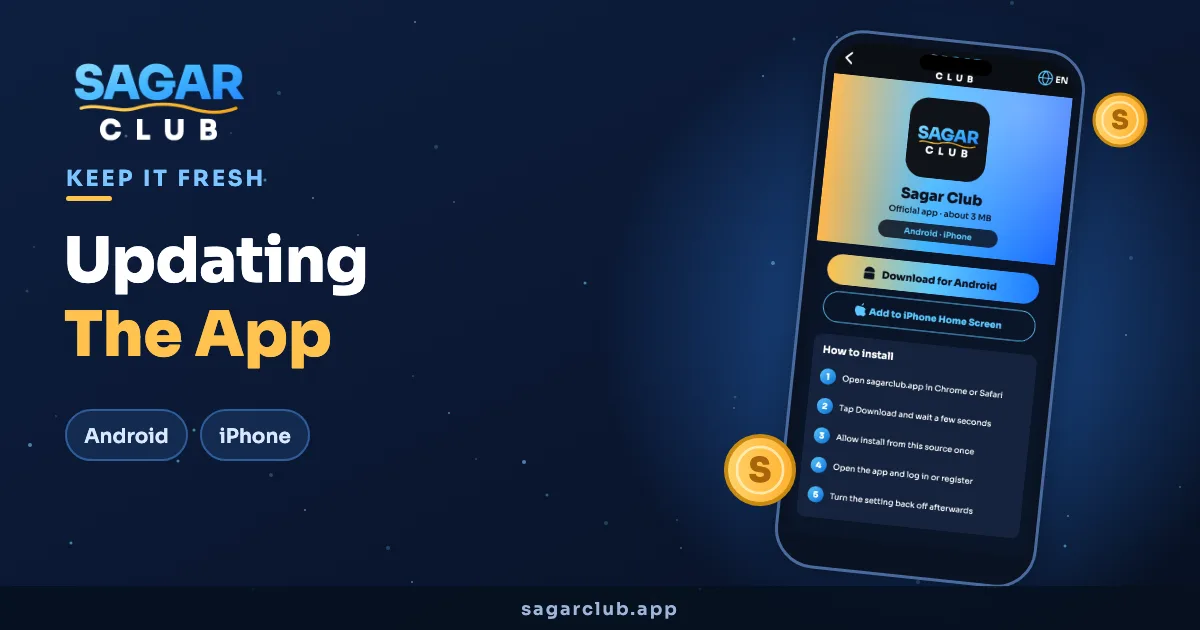
No prompt but you think you’re behind? Download the latest file from the app download page and install it over the top.
Updating on iPhone
If you added Sagar Club to your home screen from Safari, there’s nothing to install. It loads the latest version every time you open it. If it ever looks stale, close it fully and reopen.
When an update fails
| Problem | Fix |
|---|---|
| App not installed | Free up some storage, then try again. |
| Parse error | The download broke. Delete it and download again on Wi-Fi. |
| Stuck on the splash screen | Clear cache in Settings → Apps → Sagar Club. |
| Logged out after updating | Just log in again — your account is safe on the server. |
Don’t update from random links
Only update from the prompt inside the app or from this site. An “update” shared in a group is a common way fake apps spread. See how to spot fake Sagar Club links.
How to check your version
On Android, go to Settings → Apps → Sagar Club; the version number is at the bottom of the screen. Compare it with the one mentioned on the Telegram channel when an update is announced.